> ## Documentation Index
> Fetch the complete documentation index at: https://docs.mirador.org/llms.txt
> Use this file to discover all available pages before exploring further.
# Activity
> Monitor rule matches and alert history in real time
The Activity tab provides a **live feed** of every rule match in your project. When a rule's conditions are met by a trace, a new entry appears in the activity stream — giving you immediate visibility into what's firing and why.
## Viewing Activity
Navigate to **Automations** and select the **Activity** tab.
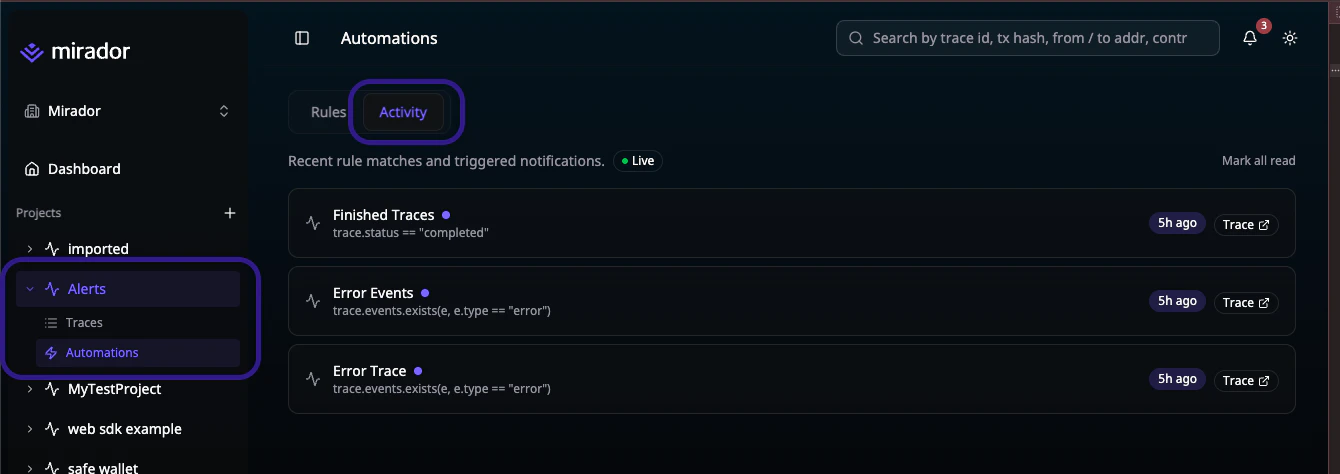 Each activity entry shows:
| Field | Description |
| ---------------- | ---------------------------------------------------------------- |
| **Rule Name** | Which rule was triggered |
| **Match Reason** | Why the rule fired (the condition that matched) |
| **Time** | When the match occurred (shown as relative time, e.g., "5m ago") |
| **Trace** | Link to the trace that triggered the rule |
### Live Updates
The activity feed updates in real time via a streaming connection. A **Live** indicator badge in the header confirms the stream is active.
New matches appear at the top of the list with a **New** badge and are highlighted briefly to draw your attention.
### Read / Unread Status
Activity entries are marked as **unread** (indicated by a blue dot) until you've seen them. This helps you quickly identify what's new since your last visit.
* **Mark all read** — click the **Mark all read** button at the top of the activity list to clear all unread indicators
* Read status is **persisted in your browser** so it survives page refreshes
### Navigating to a Trace
Click any activity entry to navigate directly to the trace that triggered the rule. This lets you quickly inspect the full trace details, events, and attributes to understand what happened.
## Understanding Match Reasons
The **match reason** column explains exactly which part of your rule's conditions were satisfied. This is especially useful when rules have complex conditions with multiple clauses — the match reason tells you which specific condition triggered the alert.
For example, if your rule checks for failed bridge transfers on ethereum, the match reason might show:
> `trace.tags contains "bridge" AND trace.attributes["status"] == "failed" AND trace.attributes["chain"] == "ethereum"`
## Tips
The activity feed shows the most recent 50 matches. For historical analysis beyond the live feed, use the trace list with filters to find past matches.
If the **Live** indicator is not showing, the streaming connection may have disconnected. The feed automatically reconnects — refresh the page if it doesn't recover within a few seconds.
## Next Steps
Create or edit automation rules
Manage notification channels
Each activity entry shows:
| Field | Description |
| ---------------- | ---------------------------------------------------------------- |
| **Rule Name** | Which rule was triggered |
| **Match Reason** | Why the rule fired (the condition that matched) |
| **Time** | When the match occurred (shown as relative time, e.g., "5m ago") |
| **Trace** | Link to the trace that triggered the rule |
### Live Updates
The activity feed updates in real time via a streaming connection. A **Live** indicator badge in the header confirms the stream is active.
New matches appear at the top of the list with a **New** badge and are highlighted briefly to draw your attention.
### Read / Unread Status
Activity entries are marked as **unread** (indicated by a blue dot) until you've seen them. This helps you quickly identify what's new since your last visit.
* **Mark all read** — click the **Mark all read** button at the top of the activity list to clear all unread indicators
* Read status is **persisted in your browser** so it survives page refreshes
### Navigating to a Trace
Click any activity entry to navigate directly to the trace that triggered the rule. This lets you quickly inspect the full trace details, events, and attributes to understand what happened.
## Understanding Match Reasons
The **match reason** column explains exactly which part of your rule's conditions were satisfied. This is especially useful when rules have complex conditions with multiple clauses — the match reason tells you which specific condition triggered the alert.
For example, if your rule checks for failed bridge transfers on ethereum, the match reason might show:
> `trace.tags contains "bridge" AND trace.attributes["status"] == "failed" AND trace.attributes["chain"] == "ethereum"`
## Tips
The activity feed shows the most recent 50 matches. For historical analysis beyond the live feed, use the trace list with filters to find past matches.
If the **Live** indicator is not showing, the streaming connection may have disconnected. The feed automatically reconnects — refresh the page if it doesn't recover within a few seconds.
## Next Steps
Create or edit automation rules
Manage notification channels